Broker Positions

Contents
Very often, you will not get the exact fill that a historical simulation might assume when trading an actual account. This is to be expected. Sometimes you forget to roll a contract when the underlying data source rolls to a new month. Other times, your broker may fill an incorrect order or you may enter an order incorrectly.
To enable these positions and have them insert into the test, use the User Broker Positions global parameter.
The Broker Positions screen lets you tell Trading Blox what your actual positions are so that Trading Blox can generate orders using those existing positions rather than using positions based on historical testing assumptions. Although it should be noted that a preferred approach for many traders is to match their actual trading to the simulation. So in other words, let the simulation create the positions and make sure your broker positions match the system. We do not recommend using this Broker Positions feature because it adds more complexity than it is generally worth, but the option is here for you.
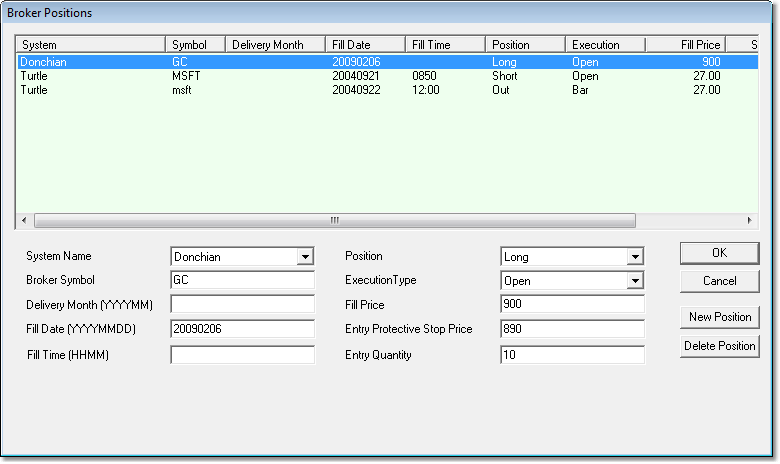
Enter your actual positions, fills, and quantities that you have with your broker. For stocks and futures be sure to enter the actual fill prices from your broker statement at the time of the fill, not the stock split or futures back adjusted prices. Stock prices will be adjusted by the stock split ratio to match the stock split adjusted data. Likewise the quantity will be adjusted on the stock split date to represent the new adjusted quantity. Futures prices will be adjusted during the test to reflect the back adjusted prices used in trading and on the charts.
These positions get inserted into the test on the Order Date specified, and any existing positions will be exited as a result. You can enter a quantity of zero to lock out any further positions in this instrument. You can enter a position of OUT to exit any existing positions on the Order date.
NOTE: Positions entered here are locked -- so subsequent exits in the system code will not cause an exit of these positions. Entering a subsequent position of "OUT" will exit the position and leave it locked so no further entries will be filled by the simulation. Enter a position of "Exit" to exit the position and unlock the instrument so that further entries and exits by the simulation can occur. The order generation report will still have new entries and exits as needed for this positions. The order generation is not locked, just the simulation fill process.
Position Elements
Each position entry consists of the following items:
•System Name - must match the system name exactly or the trade will be ignored. Drop down box populates from selected systems for the current suite.
•Symbol - must match exactly.
•Delivery month - optional. Used only to suppress the alert message once you have rolled from the old month to the new month. Available only if the data also has a delivery month.
•Fill Date - must be a real trading day within the test range for that instrument or it will be ignored.
YYYY-MM-DD.
YYYYMMDD
YYMMDD
MM/DD/YY
MM/DD/YYYY
•Fill Time -- must be an available time in the data file. For daily data this can be ignored -- only used for intraday data.
HHMM format
•Position - must be Long, Short, Out, or Exit. Drop down box has these options. Out exits the position and leaves the instrument locked, Exit exits the positions and leaves the instrument unlocked.
•Execution Type -- If set to Open, then this position will be 'filled' before any simulated positions for the bar. If set to Bar, then the simulation open positions for the bar will be filled first, then this position. Likewise for the Close execution type, which would be filled last.
•Fill Price - required for entries and exits. It is the fill price for the order. No commas.
•Entry Protective Stop Price - optional. If left blank the system will assume no stop was used. This is the original entry day protective stop. The stop your system uses on a daily basis will likely be adjusted from this as time goes by.
•Entry Quantity
The position entry delivery month is only presented as long as the data is still priced in that month plus a few days. For 2 days after the roll, a roll alert is presented indicating that the position should be rolled from the old month to the new month. Then after the 2 days the system assumes you have rolled and the entry delivery month is changed to the current data delivery month.