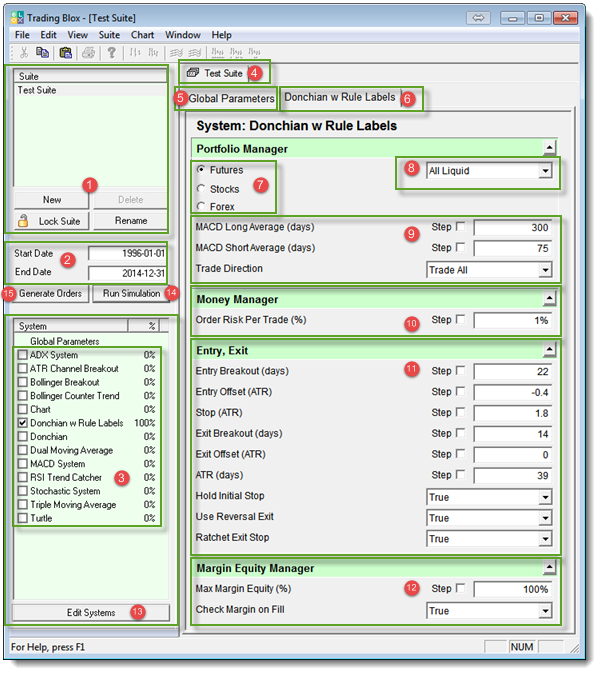
Item#:
|
Section Information:
|
Section Description:
|
1
|
Suite Names:
|
List of available Suite names.
Button Name:
|
Purpose:
|
New
|
Creates a new suite name and copies the settings from selected suite.
|
Delete
|
Removes the selected suite.
|
Lock Suite
|
Locks and Unlock suite so parameters and settings cannot or can be changed.
|
Rename
|
Use to change the name of the selected suite.
|
|
2
|
Suite Start & End Test Dates
|
Start date set the date when testing will begin. End date determines the date when it will end.
|
3
|
Names of available systems.
|
Each system is a list of Blox modules needed to perform the rules of that system.
|
4
|
Active Suite Name
|
Name of suite selected for testing.
|
5
|
Global Parameter Tab
|
Global settings adjusted to control the selected suite.
|
6
|
System Name
|
Selected suite's selected system name. Many systems can be selected in a suite and each will have their own name tab.
Tab selected will show the parameters used for that selected system.
|
7
|
Instrument Type Selector
|
Futures, Stock type (Stocks, ETF, Mutual Funds) and Forex instruments can easily be selected and tested.
|
8
|
Selected Portfolio
|
Name of selected portfolio for the selected instrument type selected.
|
9
|
Blox Module - Portfolio Manager
|
Selected system module assigned to selected system. Image shows the MACD Direction Portfolio Manager Blox Portfolio Manager.
|
10
|
Blox Module - Money Manager
|
Selected system module assigned to selected system. Image shows the Fixed Fractional Money Manager Blox.
|
11
|
Blox Module - Entry Exit
|
Selected system module assigned to selected system. Image shows the Donchian Smart Fills Entry Exit Blox.
|
12
|
Blox Module - Risk Manager
|
Selected system module assigned to selected system. Image shows the Margin Equity Risk Manager Blox
|
13
|
Edit Systems
|
Button opens the System Editor where the selected system blox assignments can be changed. New system names can be created, copied, delected, renamed and exported or encrypted. System editor also allow access to Trading Blox Editor.
|
14
|
Run Simulation - F5 key
|
Button runs selected suite through the date range shown.
|
15
|
Generate Orders - F7 key
|
Button runs selected suite through test date range shown and generates a current position and active order report.
|