Installing and Using Trading Blox

Contents
System Requirements Trading Blox runs on standard Windows operating systems like Windows 7 and Windows 8. Trading Blox also runs with the Parallels, Bootcamp, or Virtual Box software on Intel based Macintosh computers. No additional software or equipment is needed other than the Virtualization Software and Microsoft Operating System. Trading Blox runs on 32 bit computers, and can also run native on x64 computers.
If using an Intel based Mac, be sure to install Parallels or Bootcamp with your choice of Windows Operating System. Trading Blox can then be install in this virtual windows environment.
A minimum screen resolution 1024 x 768 or larger is required at 96dpi. If using a larger size, such as 125% or 150% with Windows 7 a larger screen resolution will be required. A minimum of 2 GB of RAM and a 2 GHz processor speed are recommended for normal testing. If you are testing with large stock portfolios or huge amounts of intraday data, we recommend at least 8 GB or more of RAM and a quad core x64 computer running the native x64 version of Trading Blox.
Trading Blox's Parameter Stepping feature allows for the concurrent testing of multiple distinct parameter value combinations. These kinds of tests finish significantly faster on high-performance machines. Ideally a machine would have 4 GB or more of RAM and a processor speed well over 3 GHz. Because Trading Blox uses is multi-threaded, a quad core or more computer is quite handy for large stepped tests.
Trading Blox is very fast, however, and will run reasonably well on an older machine. The new version 4 does not support XP or Vista.
Installation: Trading Blox customers may download the Trading Blox installer from the www.tradingblox.com web site. Once a customer has purchased the software, they will automatically receive an email with a link to the download location, and the license keys required to install the software. The install takes a few minutes, and is completely automated.
Clicking on the download link in the email will start the download of the installer. The installer will run when the download is completed, and the installation process is automatic by default. Once the installation is completed, the customer enters their License Name and License Key from email, and the program is up and running.
Trading Blox can be launched by clicking on the Start button to bring up the Start Menu, go to Programs | Trading Blox | Trading Blox.
When Trading Blox is first installed it will be necessary for the software to reach the internet servers at Trading Blox so the software can validate the license key code. In most installation that do not use any proxy servers to reach the internet there won't be any additional changes required to get the software key validate and allow Trading Blox to run.
Proxy Settings: When a Proxy server is being used for security, controlling which applications are allowed to access the internet, or any other reason, it is likely that some manual changes to the Trading Blox "Registry.ini" file will be required. These changes are simple, but they require the user to collect the following information prior to attempting to run Trading Blox.
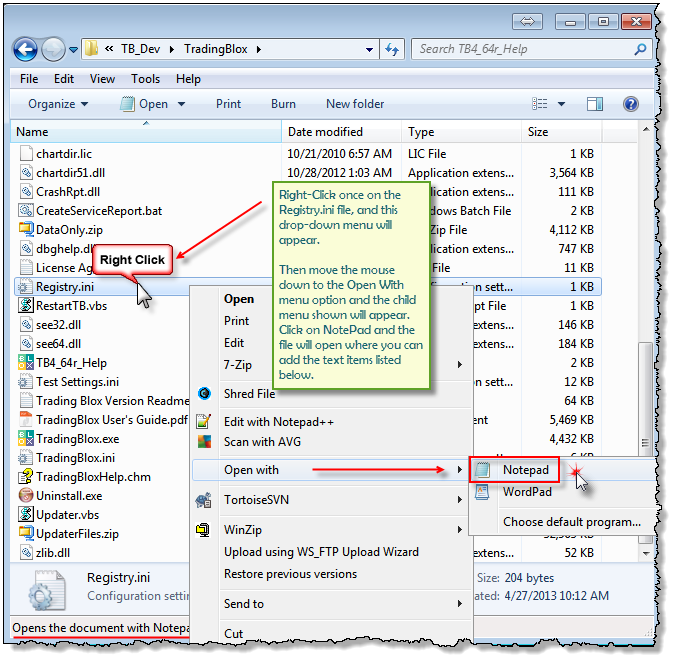
When the above information has been obtained, locate the "Registry.ini" file in your Trading Blox installation directory:
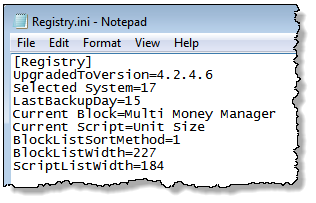
When Notepad opens the file it will look like this:
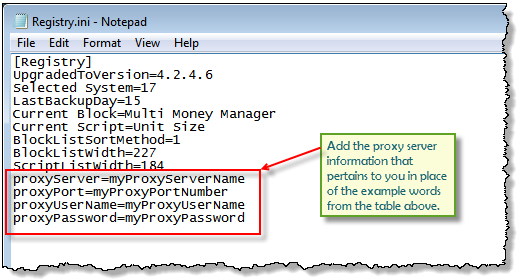
Using the table above made available for collecting the details needed, add these four lines of text using your own information on the right-side of the equal sign "=":
Once the correct proxy information for you location is entered, Trading Blox should not have any trouble accessing the internet and validating the license key code.
|